Low-Cost Local AI: Host Image Models on a Budget
Published on Tháng 1 19, 2026 by Admin
Why Host AI Image Models Locally?
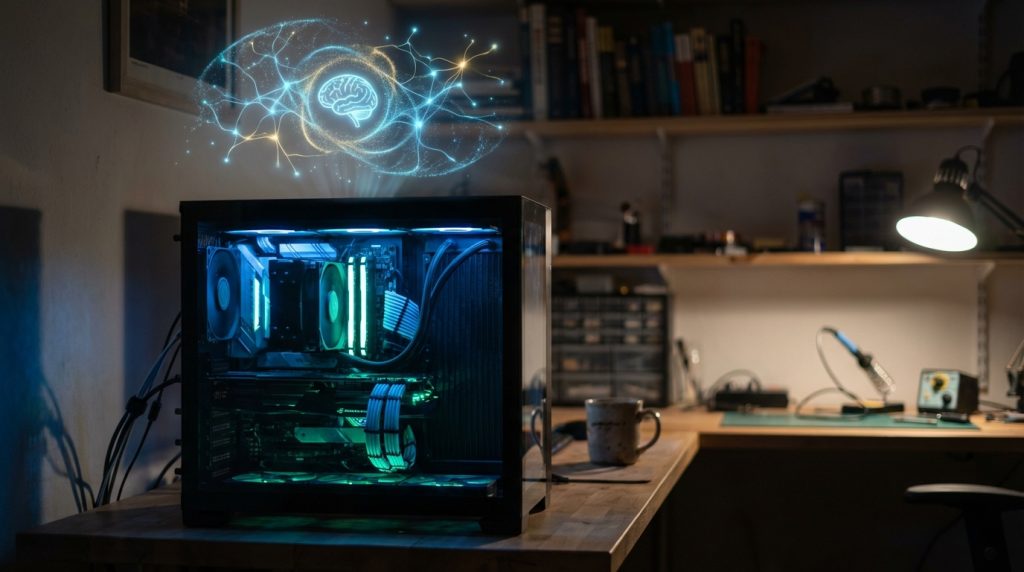
The initial hardware investment might seem daunting. However, the long-term benefits of local hosting are significant. You move from a pay-per-image model to a fixed-cost asset. Consequently, this shift fundamentally changes your relationship with AI generation.
The Cost Advantage Over Cloud APIs
Cloud-based AI services charge for processing time or per image generated. These costs can be unpredictable. For example, a single complex project with many iterations could cost a surprising amount.A local setup, on the other hand, has a one-time hardware cost. After that, your only ongoing expense is electricity. This means you can generate thousands of images for a fraction of the price of cloud services. Therefore, for prolific creators, local hosting offers unparalleled economic value.
Unmatched Privacy and Data Control
When you use an online service, you send your prompts and generated images to a third-party server. This raises valid privacy concerns. Your data could be stored, analyzed, or used to train future models.By hosting locally, your data never leaves your machine. You have complete and total control. This is especially important for sensitive projects or commercial work. In addition, you are not subject to the terms of service of a large corporation, giving you more freedom.
Freedom from Rate Limits and Censorship
Many AI services impose strict rate limits on their users. This can slow down your workflow considerably. Furthermore, they often have content filters that may restrict your creative expression.With a local server, you are the only user. You can generate images as fast as your hardware allows. There are no rate limits to worry about. Similarly, you can use any open-source model you want, free from the content restrictions imposed by commercial platforms.
Core Hardware You’ll Need
Building a local AI machine requires careful component selection. The GPU is the star of the show, but other parts are also important. You must balance performance with your budget to create an effective system.
The GPU: Your Most Critical Component
The Graphics Processing Unit (GPU) does the heavy lifting for AI model inference. Its performance directly impacts how quickly you can generate images. The most crucial factor here is the amount of Video RAM (VRAM).More VRAM allows you to run larger, more complex models and generate higher-resolution images.
- 8GB VRAM: This is the minimum for getting started. It works well for standard models like Stable Diffusion 1.5.
- 12-16GB VRAM: This is a great sweet spot. It provides enough memory for most modern models and techniques like LoRA training.
- 24GB+ VRAM: This is ideal for enthusiasts. It lets you experiment with the largest models and advanced workflows without compromise.
Used NVIDIA GeForce RTX 30-series cards, like the RTX 3060 (12GB) or RTX 3090 (24GB), offer excellent value.
CPU and RAM: Don’t Overlook the Basics
While the GPU is primary, the Central Processing Unit (CPU) and system RAM still play a role. The CPU helps load models and prepare data. Your system RAM needs to be sufficient to support the operating system and the AI software.For a budget build, a modern 6-core CPU is more than enough. In terms of RAM, 16GB is a workable minimum, but 32GB is highly recommended. This prevents system bottlenecks, ensuring the GPU is always fed with data.
Storage: Fast SSDs are Key
AI models can be very large, often several gigabytes each. You will also generate a lot of images. Therefore, fast storage is essential for a smooth experience.A Solid State Drive (SSD) is a must. An NVMe M.2 SSD provides the best performance, leading to faster model loading times. A 1TB drive is a good starting point. This gives you enough space for your OS, software, and a decent collection of models and generated images.
Building Your Low-Cost AI Machine
You don’t need to buy all-new parts to build a capable AI server. There are several budget-friendly paths you can take. Each approach offers a different balance of cost, effort, and performance.
Option 1: Upgrading an Existing PC
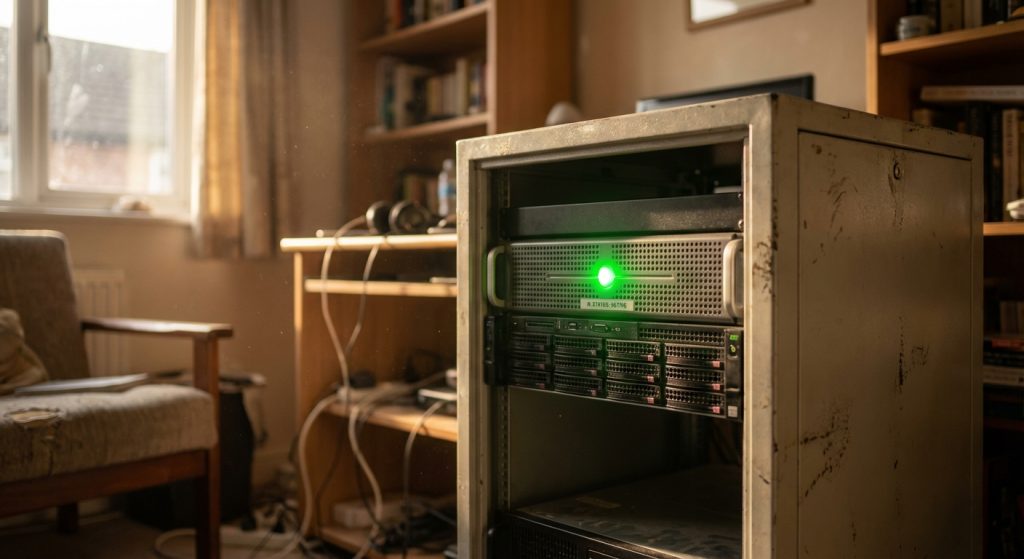
If you already have a decent desktop PC, your cheapest option is to upgrade it. The most impactful upgrade is adding a powerful, used GPU. Check your power supply unit (PSU) to ensure it can handle the new card’s power draw. You may also consider adding more RAM. This is often a simple and highly effective strategy.
Option 2: Buying Used Workstation Hardware
The second-hand market is a goldmine for powerful hardware. Old enterprise workstations from brands like Dell or HP often have robust power supplies and motherboards. You can find these for a low price and then add a modern GPU. This approach requires more research but can deliver incredible performance for the money.
Option 3: The Dedicated Mini-PC Route
For those with limited space, a high-performance mini-PC can be a solution. Some modern mini-PCs come with capable integrated graphics or support for external GPUs (eGPUs). While this might not be the absolute cheapest path, it offers a compact and power-efficient alternative to a large desktop tower.
Essential Software for Local Hosting
Hardware is only half of the equation. You also need the right software to run and interact with your image models. Luckily, the open-source community provides amazing tools for free.
Choosing Your Operating System
You have two main choices for your OS: Windows or a Linux distribution like Ubuntu.
- Windows: It is generally easier for beginners to set up. Most popular tools have straightforward installers for Windows.
- Linux: It can offer slightly better performance and is the standard in the professional AI world. However, it has a steeper learning curve if you are unfamiliar with it.
For most DIY enthusiasts, starting with Windows is a perfectly fine choice.
Key Frameworks: Automatic1111 and ComfyUI
These are the two most popular web interfaces for running Stable Diffusion. They run on your local machine and let you interact with the model through your web browser.
- Automatic1111: It’s feature-packed and has been the standard for a long time. It is great for users who want lots of options in a traditional interface.
- ComfyUI: This uses a node-based system. It is incredibly powerful and flexible, allowing you to build complex workflows visually. It can seem intimidating at first but is very efficient once learned.
Using Docker for Easy Management
Docker is a containerization platform that can simplify your setup. It allows you to run software in isolated environments called containers. Many AI projects provide Docker images, which bundle the application and all its dependencies. This can save you from manually installing drivers and libraries, which is often a major headache.
Optimizing for Performance and Cost
Once your system is running, you can take steps to make it more efficient. Optimization helps you generate images faster and can even reduce electricity consumption.
Model Quantization: Smaller and Faster
Many models can be “quantized.” This process reduces their file size and memory requirements, often with a minimal loss in quality. A quantized model runs faster and uses less VRAM. This can be a game-changer for systems with less than 12GB of VRAM, allowing them to run models they otherwise couldn’t.
Smart Power Management
An AI machine, especially one with a powerful GPU, can use a lot of electricity. However, it only draws significant power when you are actively generating images. Ensure your operating system’s power settings are configured to let the PC idle at a low power state when not in use. This simple step can make a big difference on your monthly bill. Moreover, exploring Stable Diffusion cost benefits in the open-source community can reveal more ways to run efficiently.
Frequently Asked Questions (FAQ)
How much GPU VRAM do I really need?
For a good experience with modern models, 12GB of VRAM is the recommended sweet spot. 8GB is a functional minimum, but you will face limitations. 24GB or more is ideal for experimentation and future-proofing your build.
Can I run this on a laptop?
Yes, if you have a gaming laptop with a dedicated NVIDIA RTX GPU. Laptops with an RTX 3060 or better can work well. However, be mindful of heat, as laptops have less effective cooling than desktops. You must ensure proper ventilation during use.
Is it difficult to set up?
It has become much easier. Tools like Automatic1111 have one-click installers for Windows that handle most of the setup. While you might encounter some issues, a vast number of online guides and communities can help you troubleshoot. The initial learning curve is worth the long-term benefits.
How much will this cost per month in electricity?
This depends on your hardware, your electricity rates, and how much you use it. A PC with a powerful GPU might draw 400-500 watts under full load. If you run it for two hours a day, you can calculate the monthly cost. It will almost certainly be far less than a comparable cloud service subscription for the same usage.